The Pages manager allows you to manage the pages and structure of your Web site. This manager is where you will publish the majority of the content in your site.
You must have one of the checked permissions to use this manager.
Guest
Member
Contributor
Editor
Administrator
Group Contributor
Pages Manager: Overview
Pages Manager: Home Page Settings
This allows you to add content to your Home Page and select default settings for your entire website.
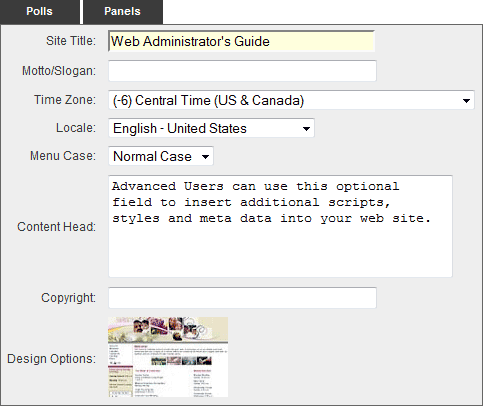
SITE TITLE: This is the name of your organization. The information typed in this field will appear at the top of your main page.
MOTTO/SLOGAN: If your organization has a motto or slogan, enter it here. This will appear on the home page of your site. (Please note: not all designs support the motto/slogan, therefore in some cases it will not appear.)
TIME ZONE: This is the time zone where your organization is located.
LOCALE: You can select the language and region for the country where your organization is located.
MENU CASE: Select your menu default case. You can select normal, upper or lower case.
CONTENT HEAD: Advanced users can use this optional field to insert additional scripts, styles and meta data in your web site. This field has a character limit of 500. Please note: Our technical support staff does not support this advanced user option.
COPYRIGHT: Add your own copyright information to the existing copyright tag line. Your information will appear to the left of the existing copyright text.
DESIGN OPTIONS: Click the design option that is currently shown. A window will appear with the other designs you made available in the Additional Designs section of the Designs manager. Select the design you want to apply to this page.
Pages Manager: Home Page Polls
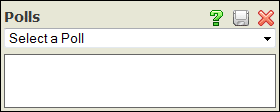
Using the drop down menu, select the poll you created in the Polls manager. The poll or polls you select here will only display on your Home page.
Click the Save icon within the dialog box.
Repeat this process if you have more than one poll.
To delete a poll, click the Delete icon to the left of the poll title.
Pages Manager: Home Page Panels
Add/Delete Panels
Click the Panels tab.
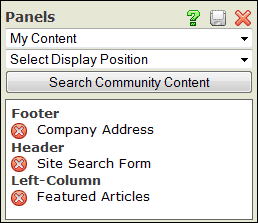
Using the first drop down menu, select the panel you wish to display. Note: The panel or panels you select here will only display on your Home Page.
The panel you select will appear in the preview window at the bottom of the Panels dialog box.
Using the second drop down menu, select the display position for the area you want the panel to appear on your site.
Click the Save icon within the dialog box. Repeat this process for each panel you wish to add.
To delete a panel placement, click the Delete icon to the left of the panel title.
Update Panel Position and Order
Click the Panel Name
Using the first drop down menu, select the display position for the area you want the panel to appear on your site.
Using the second drop down menu, select the order in which you want the panel to display. By selecting "1", the panel will appear first within its assigned position. By selecting "2", the panel will appear second within its assigned position.
Click the Save icon within the dialog box. Repeat this process for each panel you wish to update.
Add/Edit your Home Page content using the Page Editor. For help with the functionality of the Page Editor, see Using the Editor for more information.
Click the Save icon in the upper right corner of your screen to save your Home Page settings.
Pages Manager: SEO (Search Engine Optimization) Settings
This allows you to enter Search Keywords and a Search Description used for Search Engine Optimization.
Search Keywords
SYSTEM KEYWORDS: Basic organization information we are automatically generating for you.
UNIQUE PRODUCTS, PROGRAMS OR SERVICES: Enter keywords relating to products, programs or services unique to your organization.
ASSOCIATIONS, AFFILIATIONS OR MEMBERSHIPS: Enter any associations, affiliations or memberships your organization has.
WELL-KNOWN UPCOMING EVENTS: Enter upcoming events that are known to be associated with your organization.
WELL-KNOWN EMPLOYEE NAMES: Enter employee names that are known to be associated with your organization.
POSSIBLE ORGANIZATION MIS-SPELLINGS: Enter possible alternate spellings a user may enter for your organization name.
ADDITIONAL IMPORTANT KEYWORDS: Add any additional important keywords that do not fall within one of the previous fields.
Search Description
Enter or update your Search Description using the text area field provided.
Or, click the Suggest Description tab and we'll suggest a description for you based on your keywords. Please note this is only a suggestion and you will need to edit the information accordingly before saving.
Click the Save icon in the upper right corner of your screen to save your Search Engine Optimization Settings.
Pages Manager: Default Panels
Add/Delete Panels
Click the Panels tab.
Using the first drop down menu, select the panel you wish to display. Note: The panel or panels you select here will display on all pages in your Web site except for your Home Page.
The panel you select will appear in the preview window at the bottom of the Panels dialog box.
Using the second drop down menu, select the display position for the area you want the panel to appear on your site.
Click the Save icon within the dialog box. Repeat this process for each panel you wish to add.
To delete a panel placement, click the Delete icon to the left of the panel title.
Update Panel Position and Order
Click the Panel Name
Using the first drop down menu, select the display position for the area you want the panel to appear on your site.
Using the second drop down menu, select the order in which you want the panel to display. By selecting "1", the panel will appear first within its assigned position. By selecting "2", the panel will appear second within its assigned position.
Click the Save icon within the dialog box. Repeat this process for each panel you wish to update.
Please visit the section on Page Approval for detailed information. This will only apply to those users with the People manager.
Pages Manager: Page Listing
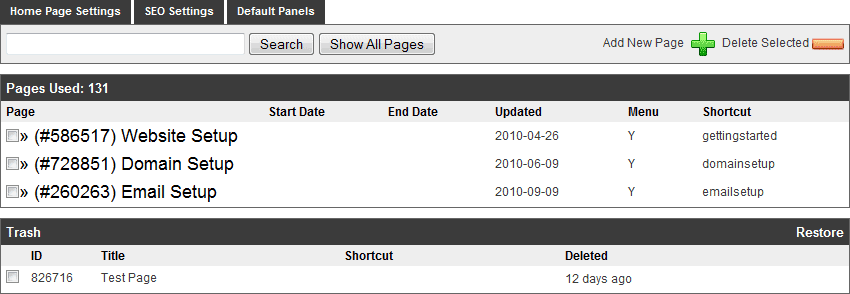
SEARCH: If you have a large page structure, you can now enter the Page Title or Page ID into the Search field instead of having to scroll through your entire hierarchy. Just enter the Page Title or Page ID and click "Search". Your page will now be highlighted.
SHOW ALL PAGES: Click this button to expand your entire menu and display all of your pages. Click the button again to collapse your menu so that only your top-level pages are showing.
ACCESS PAGES
Single click the page title to access the Page Editor so you can work on the page.
Click the arrow to the left of the Page ID to show sub-pages when applicable.
PAGES USED: This displays the number of pages you have created.
START DATE: The Start Date is the date the page will first appear on your site. Make sure Display is set to "Y" if you want the page to appear as a link within your site menu.
END DATE: The End Date is the date in which the page will expire.
UPDATED: This is the date your page was last updated.
MENU LINK: You will see a "Y" or "N" in this column. This indicates whether or not you have chosen to display the page on your site menu. Should it be set to "Y" but the end date has expired, the page will not show on your menu.
SHORTCUT: Should you have a shortcut to the page, it will be displayed to the right of the corresponding page title. See a full explanation of the shortcut feature below.
TRASH: A pages is placed in the Trash when you choose to delete it from your Page Listing. It remains in the Trash for 14 days and is then completely deleted from the system.
Pages Manager: Add New Page
To add a page, click on the Add New Page icon located next to the Show All Pages button in your Pages manager.
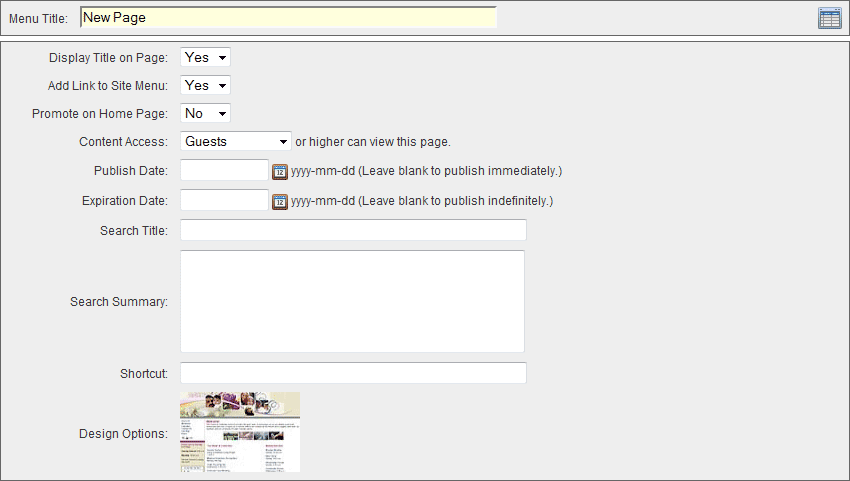
MENU TITLE: Enter a title for your page. This title will appear on your main menu should you choose to display the link.
DISPLAY TITLE ON PAGE: Select "Yes" from the drop down menu to display the title on your page. Select "No" from the drop down menu to leave the title off of your page.
ADD LINK TO SITE MENU: Select "Yes" from the drop down menu to display the link on your menu. Select "No" from the drop down menu to not display the link on your menu.
PROMOTE ON HOME PAGE: Select "Yes" to automatically add a link to the current page in the feature (Just For You) section of your home page.
CONTENT ACCESS: This allows you to set the minimum security level required to view your page. For more information on setting access, see the People manager as this option will only appear to those who have the People manager.
Guest: This allows anyone who visits your site to view your page.
Member: This allows only those who have Site Member access or greater to view your page.
Site Contributor: This allows only those who have Site Contributor access or greater to view your page.
Site Editor: This allows only those who have Site Editor access or greater to view your page.
Site Administrator: This allows only those who have Site Administrator access to view your page.
PUBLISH DATE: Click the calendar icon to the right of the Publish Date field to bring up the interactive calendar and choose the date that your page will be available to users. Leave the Publish Date field blank to make your page available immediately. Alternatively, you may click inside the Publish Date field to bring up the interactive calendar.
EXPIRATION DATE: Click the calendar icon to the right of the Expiration Date field to bring up the interactive calendar and choose the date that your page will expire. The page will appear through the end of the date you select. The end time is determined by your Time Zone selection within the Home Page Settings area. Leave the Expiration Date field blank to make your page available immediately. Alternatively, you may click inside the Expiration Date field to bring up the interactive calendar.
SEARCH TITLE: Enter a descriptive title for your page to be used for Search Engine data. This information will be populated within your browser's Title Bar. If left blank, the Menu Title will be used by default. This title is also used when doing a site search.
SEARCH SUMMARY: Enter descriptive information to be used for Search Engine data.
SHORTCUT: This allows you to enter a one word or multi-level shortcut to your page, a Web address to another page within your site, a Web address to a file within your site or a Web address to an external site.
One word or multi-level entry - This will be a one word entry (i.e. youth) or multi-level entry (i.e. youth/camp/photos) linking directly to the page in which the shortcut is added. You would access each on the Web by typing the following Web address into your Internet browser (replacing "yourdomain.com" with your actual domain name): One word entry - http://www.yourdomain.com/youth; Multi-level entry: http://www.yourdomain.com/youth/camp/photos.
Link page to another page within your site - Enter a Web address for a page within your site into the shortcut field. For example, http://www.yourdomain.com/staff/bios. In this example, when a user clicks the corresponding page title in your menu, they will go to http://www.yourdomain.com/staff/bios. This is the equivalent of redirecting the user to another page within your site. (Note: this method is only applicable to pages created in the Pages manager)
Link page to a file within your site - Enter a Web address for a file within your site into the shortcut field. For example, http://www.yourdomain.com/clientimages/yoursiteid/newsletter.doc. In this example, when a user clicks the corresponding page title in your menu, the Newsletter Word document will open on their computer. (Note: this method is only applicable to pages created in the Pages manager)
Link page to an external link - Enter an external Web address into the shortcut field. For example, http://www.microsoft.com. In this example, when a user clicks the corresponding page title in your menu, they will be directed to http://www.microsoft.com. (Note: this method is only applicable to pages created in the Pages manager)
DESIGN OPTIONS: Click the design option that is currently shown. A window will appear with the other designs you made available in the Additional Designs section of the Designs manager. Select the design you want to apply to this page.
Pages Manager: Add/Edit Page Contents
Add/Edit page contents using the Page Editor. For help with the functionality of the Page Editor, see Using the Editor for more information.
Click the Save icon in the upper right corner of your screen to save your Home Page settings.
Pages Manager: Change the Order of Pages
By adding some basic HTML code to the page name, you can place the pages in any order you choose. The format is this: page name.
In the Menu Title text field, place your cursor at the beginning of your page title and type the following: NOTE: This is 2 hyphens following the exclamation point and 2 hyphens preceding the greater than sign (>). Make sure you put a space before the letter and after the letter.
Change the "a" to the letter of the order for that page. Example: If you want the About Us page to be listed third make the page name About Us. The code does not appear on the web site.
The order only affects pages on the same hierarchical level. So you can do this with sub pages as well and it will not affect the main pages.
Pages Manager: Group Access
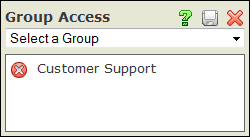
This allows you to make a page viewable only by users in the selected group or groups. The user must be granted Member access or greater within the group to see the page. For more information on setting access, see the People manager.
You must first setup your target groups in the Groups manager.
Users must be assigned to the group to be included in the target groups. This can be done by the individual through setting his/her preferences at log in or by changing those preferences from your Web site's home page. You can also do this manually through the People manager.
Choose the group you wish to grant access and click the Save icon in the upper right corner of the dialog box.
To delete a group, click the Delete icon to the left of the group name.
Pages Manager: Management
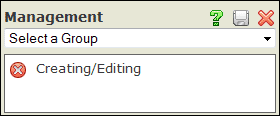
This allows you to select the groups you wish to allow to manage this page. Anyone with Contributor, Editor or Administrator access within any of the groups selected will be able to update this page's content. For more information on setting access, see the People manager.
You must first setup your target groups in the Groups manager.
Users must be assigned to the group to be included in the target groups. This can be done by the individual through setting his/her preferences at log in or by changing those preferences from your Web site's home page. You can also do this manually through the People manager.
Choose the group you wish to grant access and click the Save icon in the upper right corner of the dialog box.
To delete a group, click the Delete icon to the left of the group name.
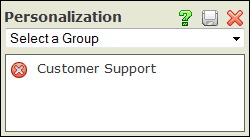
Pages Manager: Personalization
This allows you to limit promotion of this page's content on your Home page to specific groups. You must set Promote on Home Page to "Yes" to promote the page.
Note: This tab only appears if you have the People and Groups managers.
You must first setup your target groups in the Groups manager.
Users must be assigned to the group to be included in the target groups. This can be done by the individual through setting his/her preferences at log in or by changing those preferences from your Web site's home page. You can also do this manually through the People manager.
Choose the group you wish to grant access and click the Save icon in the upper right corner of the dialog box.
To delete a group, click the Delete icon to the left of the group name.
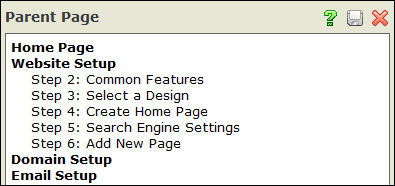
Pages Manager: Parent Page
This dialog box allows you to "relate" one page to another page. In other words, if you relate one page to another, it will appear underneath the "parent" page of that relationship.
Click the Parent Page tab.
You will see a list of all pages within your Web site.
Locate and select the page which you want to become the Parent Page of the page you are currently within.
If the page is a secondary page and you want to make it a top-level page on your main menu, select "Home Page" from your page listing.
Pages Manager: Polls
Using the drop down menu, select the poll you created in the Polls manager. The poll or polls you select here will only get applied to the page in which you are working.
Click the Save icon within the dialog box.
Repeat this process if you have more than one poll.
To delete a poll, click the Delete icon to the left of the poll title.
Pages Manager: Panels
Add/Delete Panels
Click the Panels tab.
Using the first drop down menu, select the panel you wish to display.
The panel you select will appear in the preview window at the bottom of the Panels dialog box.
Using the second drop down menu, select the display position for the area you want the panel to appear on your site.
Click the Save icon within the dialog box. Repeat this process for each panel you wish to add.
To delete a panel placement, click the Delete icon to the left of the panel title.
Update Panel Position and Order
Click the Panel Name
Using the first drop down menu, select the display position for the area you want the panel to appear on your site.
Using the second drop down menu, select the order in which you want the panel to display. By selecting "1", the panel will appear first within its assigned position. By selecting "2", the panel will appear second within its assigned position.
Click the Save icon within the dialog box. Repeat this process for each panel you wish to update.
Delete a Page or Pages by selecting the check box to the left of the Page ID number
Click the Delete Selected icon. Alternatively, you may click the Delete icon within the Page itself. The Pages or Pages will be removed from your site and placed in the Trash and then completely deleted from the system 14 days from deletion. Once a Page is deleted from the system, there is not a way to retrieve the Page.
If you want to restore the Page, select the check box to the left of the Page ID number and then click the Restore link.


 Using the drop down menu, select the poll you created in the
  icon within the dialog box.
 icon to the left of the poll title.
 Add/Delete Panels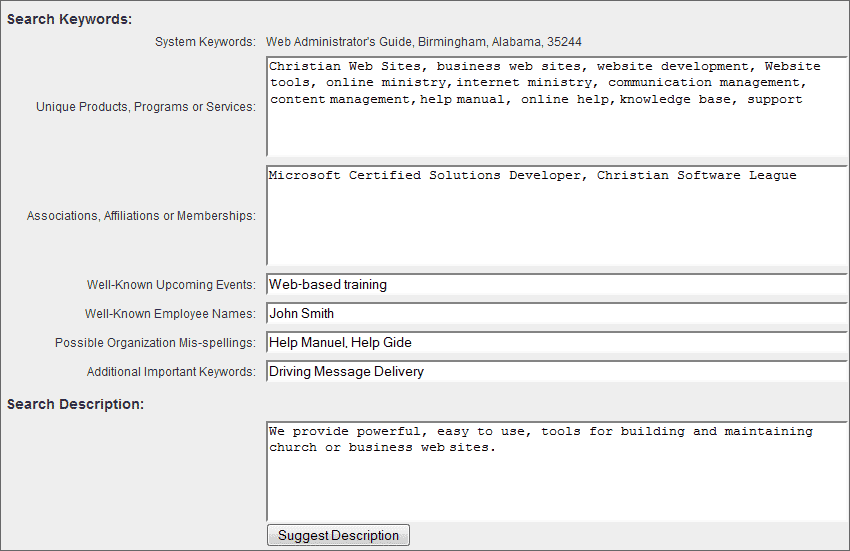
 icon located next to the Show All Pages button in your Pages manager.
 This allows you to make a page viewable only by users in the selected group or groups. The user must be granted Member access or greater within the group to see the page. For more information on setting access, see the
  This allows you to select the groups you wish to allow to manage this page. Anyone with Contributor, Editor or Administrator access within any of the groups selected will be able to update this page's content. For more information on setting access, see the
  This allows you to limit promotion of this page's content on your Home page to specific groups. You must set Promote on Home Page to "Yes" to promote the page.
 This dialog box allows you to "relate" one page to another page. In other words, if you relate one page to another, it will appear underneath the "parent" page of that relationship.
  icon. Alternatively, you may click the Delete